



Description
Download Ultimate Pen – Free Sketch Tool for macOS, screen annotation, presentation helper
Overview
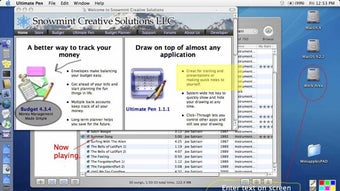
Ultimate Pen is a lightweight, screen‑drawing utility designed specifically for macOS users who need to annotate, sketch, or highlight content on‑the‑fly while working inside other applications. Whether you are delivering a live demo, creating a quick illustration during a video call, or simply want to doodle over a PDF, Ultimate Pen offers a responsive, hot‑key‑driven interface that lets you pick any color, adjust line thickness, and place drawings anywhere on the screen. The app works across most native macOS programs, from browsers and code editors to image viewers and document readers. Its “Click‑Through” mode makes it possible to display sketches over presentation software such as Keynote and PowerPoint, even though direct drawing inside those apps is not supported. The tool stores each sketch as a separate layer that can be moved, resized, or copied to another window, making it a flexible addition to any workflow that involves visual communication.
The developers have focused on keeping the footprint small and the performance snappy. The latest update adds full support for macOS 10.5 and later, improves compatibility with non‑QWERTY keyboards (including Dvorak and AZERTY), and leverages Apple’s ColorSync engine to ensure that colors chosen in the app match the display’s color profile. This attention to detail translates into a seamless experience: you press a hotkey, draw, and the annotation appears instantly without lag or flicker. While the lack of native integration with the two dominant presentation platforms (Keynote and PowerPoint) may seem limiting, the Click‑Through overlay still provides a practical workaround for most presenters. Overall, Ultimate Pen positions itself as a free, secure, and constantly updated solution for macOS users who need a quick way to annotate any on‑screen content.
Key Features & Functionality
- Universal Screen Drawing: Sketch on top of any open window, including browsers, code editors, PDF viewers, and image editors.
- Customizable Palette: Choose from an unlimited range of colors and line thicknesses, with real‑time preview.
- Hotkey‑Driven Access: Activate the pen, erase, or switch colors with a single keystroke, making it ideal for live demos.
- Layered Sketches: Each drawing is saved as an independent layer that can be moved, resized, copied, or deleted without affecting underlying content.
- Click‑Through Mode: Display sketches over presentation apps (Keynote, PowerPoint) even though direct drawing inside those apps is unavailable.
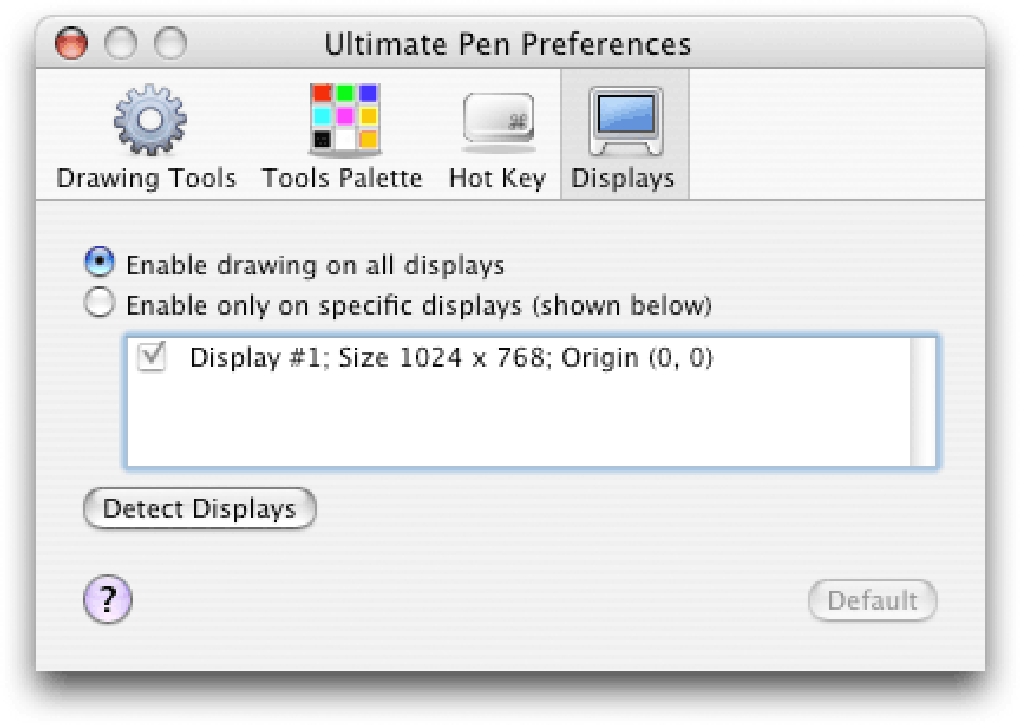
- Cross‑Display Support: Move sketches between multiple monitors or external displays without losing fidelity.
- System‑Wide Compatibility: Works on macOS 10.5 and newer, with support for diverse keyboard layouts (QWERTY, Dvorak, AZERTY).
- ColorSync Integration: Guarantees accurate color representation across different monitors and calibrated displays.
- Lightweight & Secure: No background services or internet connectivity required; the app runs locally and respects user privacy.
- Regular Free Updates: Bug fixes, performance enhancements, and occasional new drawing tools are delivered at no cost.
How These Features Benefit Your Workflow
For educators, developers, and marketers, the ability to annotate instantly can dramatically shorten the time between idea and presentation. Imagine a software trainer who needs to point out a line of code during a live coding session: with Ultimate Pen, a simple hotkey brings up the brush, the trainer highlights the relevant portion, and the audience sees the change instantly. Likewise, a marketer preparing a pitch can draw arrows over a screenshot of a website to illustrate user flow, then copy that layer into a slide deck without leaving the screen. The layered approach also means you can experiment—draw, erase, and redraw—without permanently altering the underlying document, a feature that traditional screenshot tools lack. Finally, the Click‑Through overlay removes the need for separate screen‑capture software; you can simply draw over your PowerPoint slides and let the audience see your annotations live, preserving the flow of your narrative.
Installation, Usage & Compatibility
Step‑by‑Step Installation Guide
Getting Ultimate Pen up and running on your Mac is straightforward:
- Visit the official website or the Mac App Store and click the “Download Ultimate Pen” button.
- Once the
.dmgfile finishes downloading, double‑click it to mount the installer. - Drag the Ultimate Pen icon into your
/Applicationsfolder. - Open the application; macOS will prompt you to allow accessibility permissions. Navigate to System Settings → Privacy & Security → Accessibility and check the box next to Ultimate Pen.
- Restart the app if prompted. The program now runs in the menu bar, ready for hotkey activation.
All steps are completed within five minutes, and the installer does not bundle adware or unnecessary utilities. The app is signed by the developer, ensuring a secure installation process that meets Apple’s Gatekeeper standards.
Using Ultimate Pen Effectively
After installation, you’ll notice a small pen icon in the menu bar. Clicking it opens a compact toolbar where you can select color, line width, and toggle between drawing and erasing modes. The default hotkey (⌘ + Shift + P) toggles the pen on and off; you can customize this shortcut in the preferences window to match your workflow. To draw, simply press the hotkey, move your cursor, and click‑drag to create strokes. The app automatically saves each stroke as a separate layer, visible in the “Layers” panel accessible via the menu bar. You can reposition layers by dragging them, or delete them with the Delete key. When you need to hide your sketches, press the hotkey again or choose “Hide All” from the toolbar.
For presenters using Keynote or PowerPoint, enable “Click‑Through Mode” in the settings. This mode forces the annotation window to stay on top of the presentation, allowing you to sketch over slides without interfering with slide navigation. Although you cannot edit the slide content directly, the overlay provides a visual cue that is visible to the audience.
Compatibility Details
Ultimate Pen is compatible with macOS 10.5 (Leopard) through macOS 14 (Sonoma) and runs natively on both Intel‑based and Apple Silicon Macs. The app has been tested with the latest keyboard layouts, including QWERTY, Dvorak, and AZERTY, ensuring that hotkey activation works consistently regardless of your regional settings. While the program is designed for desktop macOS, it does not have a mobile counterpart for iOS or Android, which aligns with its focus on screen‑level annotation rather than touch‑based drawing.
System requirements are minimal: 100 MB of free disk space, 512 MB of RAM, and a graphics subsystem capable of supporting ColorSync. Because Ultimate Pen operates as a lightweight overlay, it imposes negligible CPU load, making it suitable for use on older MacBook models as well as the latest MacBook Pro with M2 Max.
Pros and Cons
- Pros:
- Free to download and use with regular updates.
- Instant hotkey activation for live presentations.
- Layer‑based sketches enable easy editing and repositioning.
- Works across almost all macOS applications.
- Click‑Through mode provides a workaround for Keynote/PowerPoint.
- Low system resource usage; runs smoothly on older hardware.
- Cons:
- No native drawing support inside Keynote and PowerPoint.
- Lacks advanced drawing tools such as shapes, text boxes, or brushes.
- No iOS or Android companion app.
- Limited export options; sketches are saved only within the app.
Frequently Asked Questions
Can I use Ultimate Pen with multiple monitors?
Yes. The app detects all connected displays and allows you to draw on any screen. Sketches can be moved between monitors by dragging the layer in the Layers panel.
Is Ultimate Pen safe to install on a corporate Mac?
Absolutely. The application is signed, does not require internet access, and only requests accessibility permission to draw over the screen. No background services or telemetry are installed.
How do I customize the hotkey for activating the pen?
Open Ultimate Pen’s Preferences from the menu bar, navigate to the “Hotkeys” tab, and set your preferred key combination. The change takes effect immediately.
Can I export my sketches as image files?
The current version saves sketches only within the application, but you can take a standard macOS screenshot (⌘ + Shift + 4) of the area with the overlay to export it as a PNG or JPEG.
Does Ultimate Pen work on Apple Silicon Macs?
Yes. The app runs natively on both Intel and Apple Silicon (M1, M2) processors, delivering the same performance across all supported macOS versions.
Final Verdict & Call to Action
Ultimate Pen fills a niche that many macOS power users have long been waiting for: a fast, free, and secure way to annotate any screen without leaving the current application. Its hotkey‑driven workflow, layered sketch system, and Click‑Through mode make it especially valuable for live demonstrations, remote teaching, and quick visual brainstorming. While the inability to draw directly inside Keynote and PowerPoint is a notable limitation, the overlay workaround mitigates the issue for most presenters. The app’s lightweight design ensures that it runs smoothly even on older hardware, and regular updates keep it compatible with the latest macOS releases.
If you frequently switch between windows while explaining concepts, need to highlight UI elements on the fly, or simply enjoy doodling over PDFs and webpages, Ultimate Pen is a tool worth adding to your macOS toolbox. Download it today, enable the accessibility permission, and start sketching instantly—no learning curve, no cost, and no hidden fees.
Download Ultimate Pen now and experience a smoother, more interactive workflow on your Mac.
Guides & Tutorials for Ultimate Pen
How to install Ultimate Pen
- Click the Preview / Download button above.
- Once redirected, accept the terms and click Install.
- Wait for the Ultimate Pen download to finish on your device.
How to use Ultimate Pen
This software is primarily used for its core features described above. Open the app after installation to explore its capabilities.
User Reviews for Ultimate Pen 0
No reviews found





.webp)